

Your shared hosting plan might already offer website backups.. Depending only on your hosting provider can leave your important data at risk. In this guide, you will learn how the 3-2-1 backup strategy works.
You will also learn how to create your independent website backups. This can be done without infrastructure.
Key Takeaways
- The 3-2-1 backup method involves keeping three copies of essential website data to reduce the risk of data loss.
- Two different storage types reduce dependence on a single storage system.
- At least one backup should remain outside the primary hosting environment.
- Website backups should include files, databases, media, and configuration details.
- Automated schedules help maintain consistent backup copies.
- Regular restoration tests confirm whether backup files actually work.
What Is the 3-2-1 Backup Strategy for Shared Hosting?
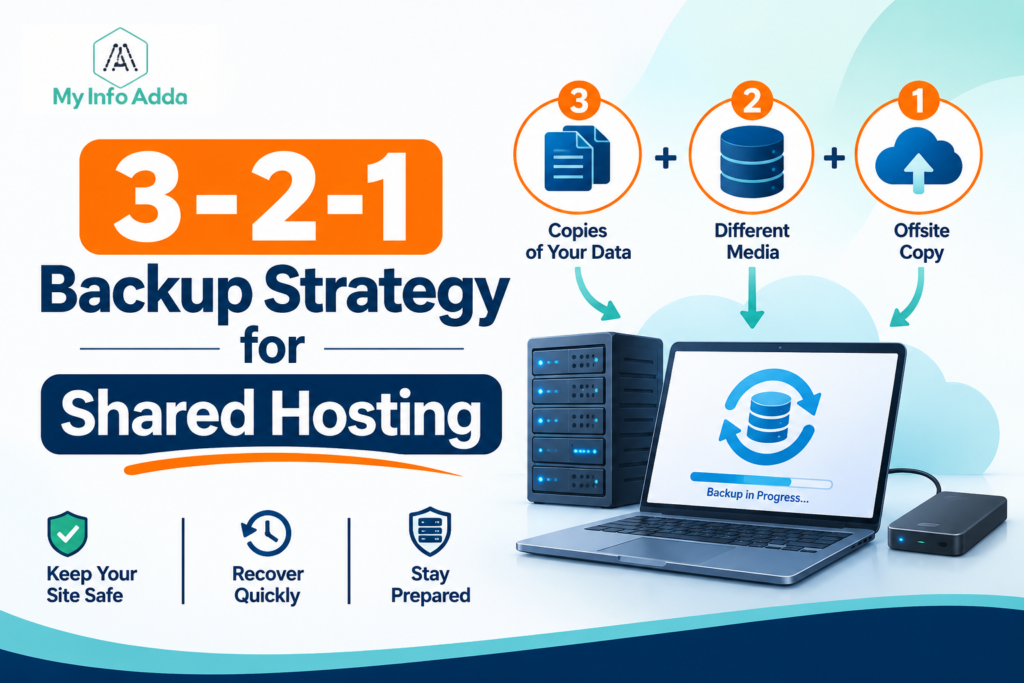
The 3-2-1 backup strategy is a data protection method that maintains three copies of important data, stores them across two different storage types, and keeps at least one copy offsite. Following website hosting security best practices can also help protect important website data.
For shared hosting websites, this means keeping your original website data and two additional backups in separate storage locations.
For example, a WordPress website could use this arrangement:
- Copy 1: Original website on the hosting server.
- Copy 2: Downloaded backup on an external hard drive.
- Copy 3: Backup stored in Google Drive or Amazon S3.
Why Is the 3-2-1 Backup Rule Important for Shared Hosting?
The 3-2-1 backup rule helps shared hosting users protect website data against server failures, accidental deletion, malware, and security incidents.
If your hosting server experiences downtime, a separate cloud backup makes it easier to restore your website without relying on the affected server. Choosing reliable hosting to prevent website downtime can also help maintain website availability. .
| Hosting provider backup | Independent backup |
| Managed by hosting provider | Managed by website owner |
| May share hosting infrastructure | Stored separately |
| Availability depends on provider policies | You control access and retention |
| Recovery options may be limited | Offers additional recovery flexibility |
An offsite backup keeps an additional copy of your website’s files and database in a separate location, away from your main hosting server.
How Does the 3-2-1 Backup Strategy Work?
The 3-2-1 backup strategy works through three simple requirements:
- Three copies: Keep your original website and two backups.
- Two storage types: Use separate storage systems, such as hosting storage and an external drive.
- One offsite copy: Store at least one backup outside your hosting environment.
For example, two backup folders on the same hosting server do not provide meaningful storage separation.
How Do You Back Up Website Files and Databases on Shared Hosting?
backup you can count on for hosting means keeping your site files safe, pulling out the databases, keeping copies in more than one place and making sure a restore actually works.
Here are seven steps to follow:
- List the files that matter: This covers WordPress core files, themes, plugins, uploads and config files.
- Grab the site files: You can use cPanel File Manager or an FTP tool like FileZilla.
- Pull out the database: Go into phpMyAdmin, pick your WordPress database and send it out as an SQL file.
- Make one copy: Put the files you downloaded and the database on a separate external drive.
- Send a copy offsite: Keep another backup in Google Drive, Amazon S3 or cloud storage that works the way.
- Set backups on a schedule: Let your hosting control panel or a WordPress plugin run backups each day or each week on its own.
- Try a restore: Bring the backup back in a staging setup to see if the site still works.
For more guidance, explore how to manage website files securely.
What Should You Include in a Shared Hosting Website Backup?
A complete website backup should include all files and databases required to restore the website and its essential functions.
Choosing essential website hosting features is also important for maintaining website reliability and data protection.
Before creating backups, I recommend checking that website backup includes:
- Back up your WordPress installation files, including the core system, active themes and installed plugins.
- Images, videos and uploaded documents should also be part of website backup.
- MySQL databases that hold website content and settings must be part of website backup.
- Configuration files such as wp-config.php should be saved in website backup.
- Important email data, if hosting account manages email, should be included in website backup.
- SSL certificate and configuration details, where applicable, are also part of website backup.
Website files and databases are backup components. Downloading website folder alone may not preserve blog posts, settings, customer records or other database information.
Which Tools Can Automate Website Backups?
Website backup tools help you schedule, store, and manage copies without repeating every task manually.
Consider these options:
- cPanel Backup Wizard: Creates downloadable copies of website files and databases.
- phpMyAdmin: Exports MySQL databases into SQL files.
- FileZilla: Downloads website files through FTP or SFTP.
- UpdraftPlus: A WordPress plugin that supports scheduled backups and remote storage.
- Google Drive and Amazon S3: Provide separate cloud storage destinations.
- External hard drives: Offer an additional offline backup option.
Tool availability depends on your hosting plan. Check storage limits, backup frequency, plugin compatibility, and remote storage support before choosing a solution. Comparing hosting plan feature can help you select an option that meets your website’s requirements.
How Often Should You Back Up a Website on Shared Hosting?
Website backup frequency depends on how frequently your content and database change.
| Website type | Suggested backup frequency |
| Frequently updated blogs | Daily |
| Small business websites | Daily or weekly |
| Static websites | Weekly or after changes |
| E-commerce websites | Daily or more frequently for databases |
For example, an online store should protect new orders and customer-related records more frequently than a website that rarely changes.
Always create a fresh backup before major updates, website redesigns, or migrations.
How Do You Test and Restore a Website Backup?
A website backup is useful only when its files and databases can be successfully restored, making regular recovery testing essential.
For example, restore a recent backup to a staging website and check whether pages, images, plugins, and database content work correctly.
Follow these checks:
- Confirm that backup files are complete.
- Check that the database export is readable.
- Restore files and databases in a test environment.
- Open important website pages and test essential features.
- Record any restoration problems and correct them.
What’s Next? Create a Reliable Website Backup and Recovery Plan
A website backup and recovery plan explains how you keep your data safe and get your website back up after issues.
Follow the checklist below to verify that your plan covers all the important requirements.
Check your hosting provider’s policy.
- Create two backup copies.
- Keep one copy in cloud storage.
- Make sure both website files and databases are included.
- Set up backup schedules.
- Encrypt files that contain sensitive information.
- Limit who can access your backup storage.
- Follow a retention policy to manage old backups.
- Test restoring your website from a backup
- Make a backup before any major changes.
Remember: A backup stored on the server is not the same as an independent offsite copy.
Conclusion:
The 3-2-1 backup strategy helps protect hosting websites from unexpected data loss. It is a effective method. Maintain three separate versions of your important data. You use two types of storage.
You store one copy offsite. This gives you recovery options without investing heavily in hosting infrastructure. Learn more about cloud hosting reliability and its benefits.
Start with the backup that your hosting provider already offers. Then make copies that are separate and independent. It is important to test the process on a regular basis. Doing this helps you see if the backup works when you need it.
A regular backup routine makes managing your website more dependable.
Frequently Asked Questions About the 3-2-1 Backup Strategy
1. What is the 3-2-1 backup rule for websites?
The 3-2-1 backup rule means keeping three copies of your website data, using two different storage types, and storing at least one copy offsite. This approach reduces the risk of losing all your website data from a single incident.
2. Is my shared hosting provider’s automatic backup enough?
No. Hosting provider backups are useful, but they should not be your only recovery option. Maintaining independent backups in external or cloud storage gives you more control over website recovery.
3. What should I include in a WordPress website backup?
A complete WordPress backup should include core files, themes, plugins, uploaded media, the MySQL database, and configuration files such as wp-config.php. Include important email data separately if your hosting account stores it.
4. How often should I back up my shared hosting website?
Daily backups are suitable for frequently updated websites and online stores. Small business websites may use daily or weekly backups, while static websites can usually be backed up weekly or after significant changes.
5. Where should I store offsite website backups?
You can store offsite website backups using Google Drive, Amazon S3, or other compatible cloud storage services. An external hard drive can provide an additional offline copy. Keep backup access restricted and test restoration regularly.